
How to hide the WordPress admin clutter your clients never need to see
The default WordPress admin is built for developers and power users. When a client logs in to write a blog post, they’re confronted with plugin update notices, admin menu items they’ll never use, dashboard widgets that mean nothing to them, and settings that could cause problems if clicked.
This situation is even worse around popular sales periods, like Black Friday / Cyber Monday, when the annual up-sell banners take over.
ToggleWP’s UI Clean-up module lets you hide (nearly) any admin element using CSS selectors – no code, no child themes.
How it works
- Enable the UI Clean-up module.
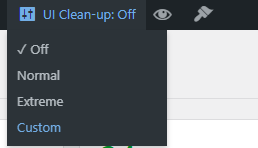
- Select a default Blocking Mode
- Click Save UI Clean-up Settings.
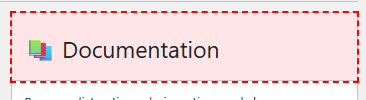
- Click the “Grab element selector” from the admin bar
- After a few seconds move the mouse over the element you’d like to select and click. Press ESC to cancel selection
- If successful, the new selector will be added to the Custom list and a notice is shown

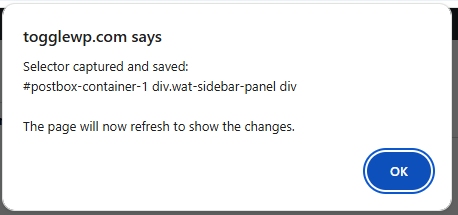
Each rule can be individually toggled off without being deleted – useful if you need to temporarily restore something. Swap it from Custom to Normal or Extreme modes to suit your clients.

What’s worth hiding
Common candidates:
- Plugin update nag notices across the top of every screen
- Third-party plugin admin notices
- WooCommerce upsell notices and marketplace promotions
Bulk control
A Bulk Activate / Deactivate button lets you turn all rules on or off with one click – useful during development when you need to see what’s hidden.
Push to all sites with Site Sync
If you manage multiple client sites, configure your UI Clean-up rules once on your hub and let Site Sync push them to every client site. Every client gets the same clean, consistent experience.
Practice in safety with “Test Notices”
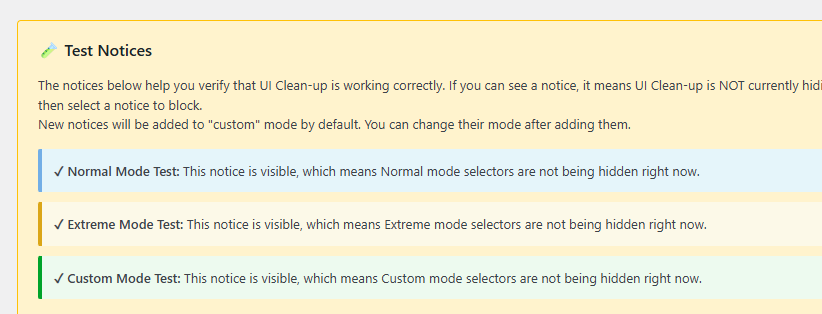
The Manage Selectors screen includes 3 purpose made test mode notices, letting you safely test it without hiding something important. None of which are blocked by default. Using the element selector you can pick one at a time and customise its blocking mode.
Use the menu on the admin bar to swap modes and check which notice is hidden.
A clean admin reduces confusion and support requests. It also signals professionalism – clients get an experience that feels considered rather than out-of-the-box.