The WordPress handover checklist: 10 questions to ask before your freelancer moves on
Handover day is the one point where everything about your site is fresh in someone’s head. A month later, nobody remembers which plugin needed the licence key or why there’s a second admin account. Ten questions now will save you a lot of guesswork later.
1. Whose email is the Administration Email Address?
Settings → General → Administration Email Address. WordPress sends password resets, security notices and update failures there. ToggleWP also uses it to decide who can manage Site Lockdown, and sends most of its alerts there unless another address is set. If it’s still your freelancer’s address, you won’t hear about problems, and they’ll keep hearing about your site. Agree whose it should be.
2. Who has an Administrator account, and who needs one?
Ask for a list. Ideally that’s one admin account for you (or none, with Temporary Admin, see below) and one for your freelancer only if they’re still doing work. Every extra admin login is one more password that could leak. See Who still has a login to your site?.
3. Should I be an Editor with Temporary Admin?
With ToggleWP’s Temporary Admin, your everyday login is an Editor. When you need admin rights, you click Become admin, re-enter your password and get them for a few minutes. Ask your freelancer to tick “Allow temporary admin” on your profile and to choose the level that suits you: manage users only, partial admin (updates allowed, no installs or file editing) or full admin.
4. Which plugins are protected, and why?
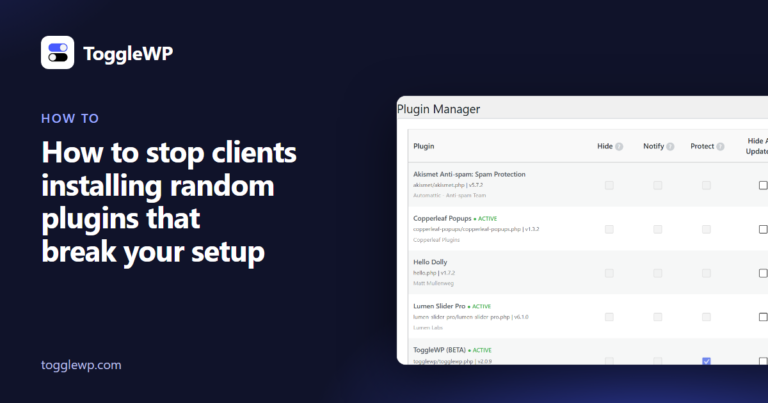
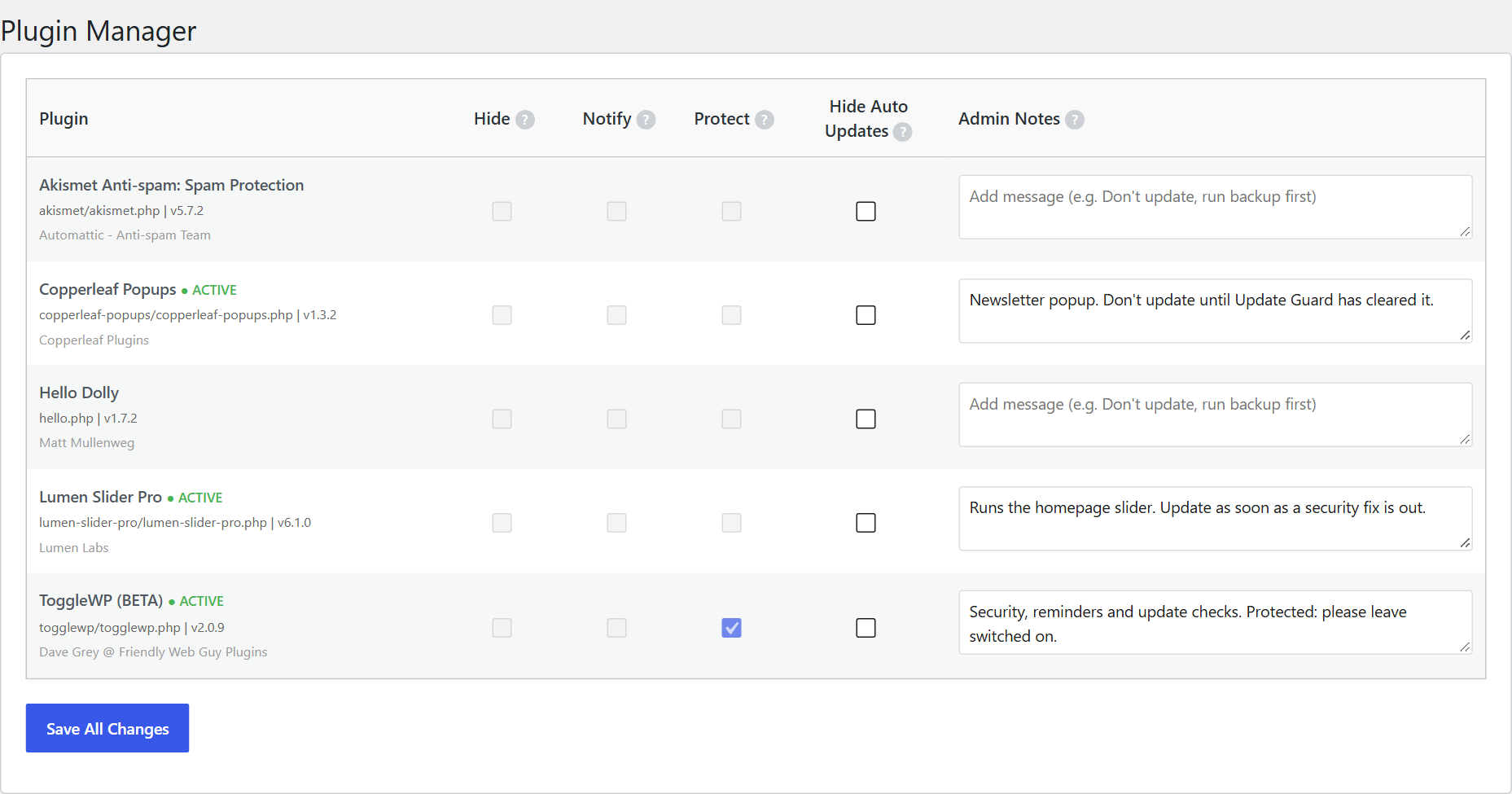
If they’ve used Site Lockdown, some plugins can’t be deactivated or deleted. Ask for a one-line reason for each one. ToggleWP lets them add a note to each plugin that admins can see, so the reasons stay on the site rather than in an email you’ll lose.
5. Which plugins and services renew, when, and on whose card?
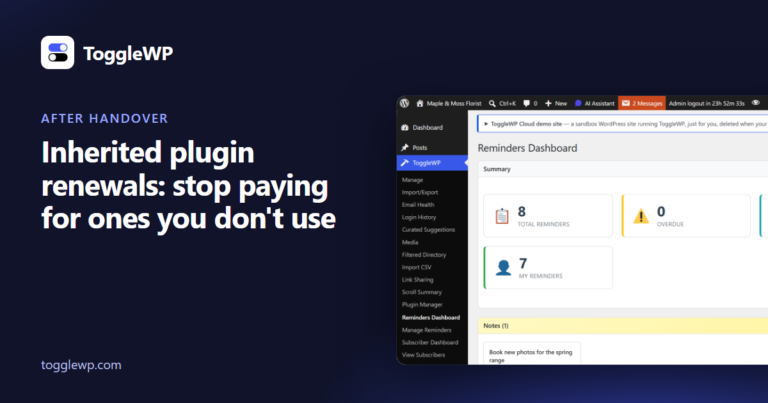
Premium plugins, the theme, hosting, the domain, the mail service, backups. Ask for renewal dates and costs, and have them added to ToggleWP’s Reminders so you get an email before each one is due. See inherited plugin renewals.

6. Who’s handling updates now?
If you’re not on a care plan, nobody is, unless something is doing it for you. Ask whether updates are automatic, and whether ToggleWP Cloud is connected so you get security alerts and Update Guard. See Who’s watching your updates now?.
7. Where are the backups, and have they ever been restored?
A backup you’ve never tested is a hope rather than a backup. Ask where the backups are kept, how far back they go and how you’d restore one.
8. Is email actually being delivered?
Contact forms, order confirmations and password resets all depend on it. Ask how the site sends email, and switch on ToggleWP’s Email Health Monitor so you hear if it stops. See Is your contact form actually reaching you?.
9. Is there a staging copy, and is “discourage search engines” off on the live site?
Both catch out new owners. ToggleWP warns you about each, but it’s worth checking on day one.
10. If I need you again, how do we do it safely?
Agree now how you’ll give access for a one-off job and take it away afterwards. See Bringing your freelancer back for one job, safely.
Keep the answers on the site
Plugin notes, renewal reminders and a pinned dashboard note mean the answers live where you’ll look for them. For what each safeguard is there for, read Your site’s been handed over.