
How to find out which plugin is sending unexpected emails from your WordPress site
You spot an email in your inbox that you didn’t expect. Or a client reports that their site is sending emails to people who shouldn’t be getting them. The question is: which plugin is responsible?
WordPress gives you no built-in answer. ToggleWP’s Email Health Monitor does.
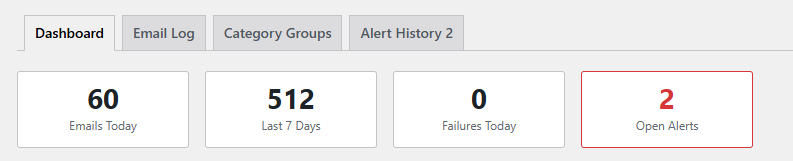
Plugin source detection
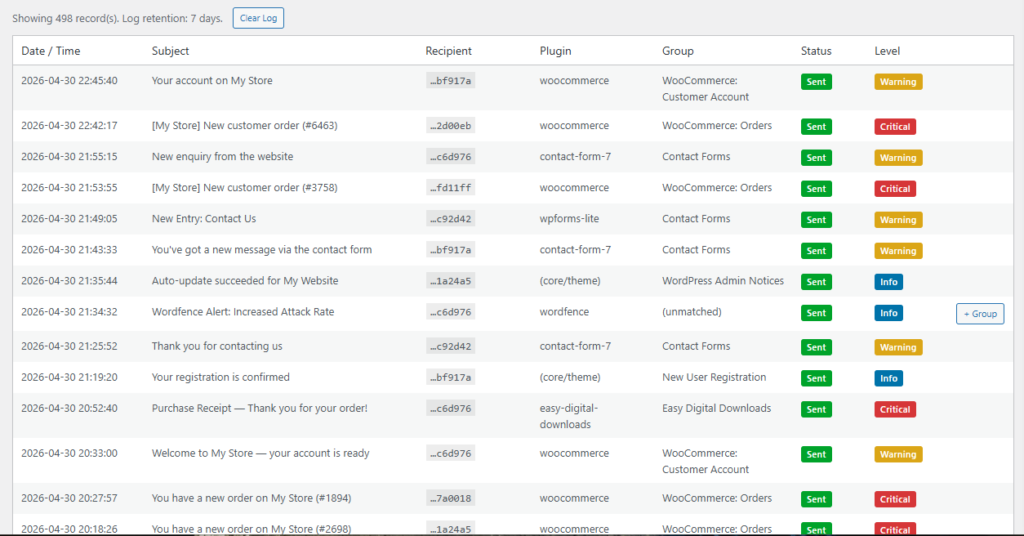
Every email logged by Email Health Monitor includes the plugin source – identified via a PHP debug backtrace at the time the email was triggered. You can see exactly which plugin sent each email, not just the subject line or recipient.
How to use it
- Enable the Email Health Monitor module.
- Go to the Email Log tab.
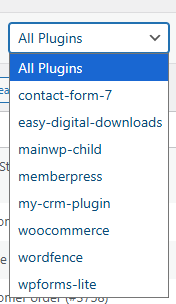
- Filter by date range, category, or search for a subject/plugin name.
If you’re investigating unexpected sends, sort by plugin source and look for anything unfamiliar.
Spot spikes before they become complaints
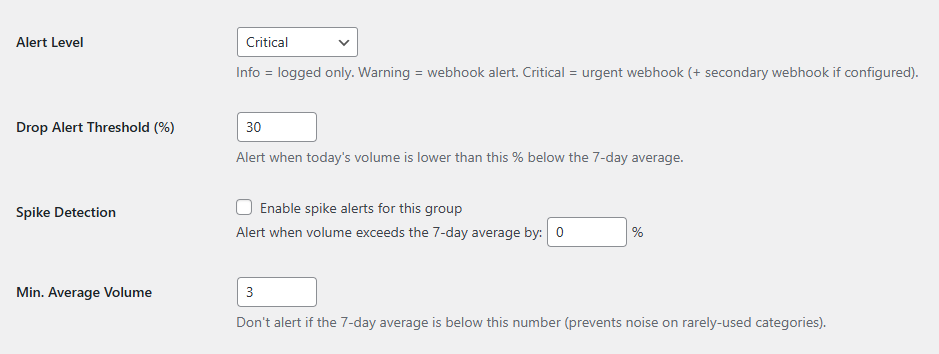
The module runs anomaly detection every 15 minutes. If a plugin suddenly starts sending a high volume of emails – a misconfigured newsletter plugin, a loop in a form handler, a plugin update that changed notification behaviour – with spike detection enabled you’ll get an alert before it becomes an endless flood.
Category groups
Emails are organised into 14 built-in category groups: WooCommerce orders and refunds, contact forms, password resets, security alerts, new user registrations, EDD, MemberPress, FluentCRM, MailPoet, and more. This makes it easy to see at a glance whether a spike is coming from orders (expected on a sale day) or from something unexpected.

Custom category groups
If you use a plugin not covered by the defaults, you can create custom category groups with your own matching rules.
Without email logging, tracking down the source of unexpected outgoing mail means disabling plugins one at a time. Email Health Monitor shows you the answer directly.