How to Find Unused Images in Your WordPress Media Library and Reclaim Storage
WordPress media libraries fill up fast. Old featured images, replaced product photos, test uploads, images from posts you deleted years ago. Over time the library balloons with files nothing uses, and it gets harder to find the ones you need.
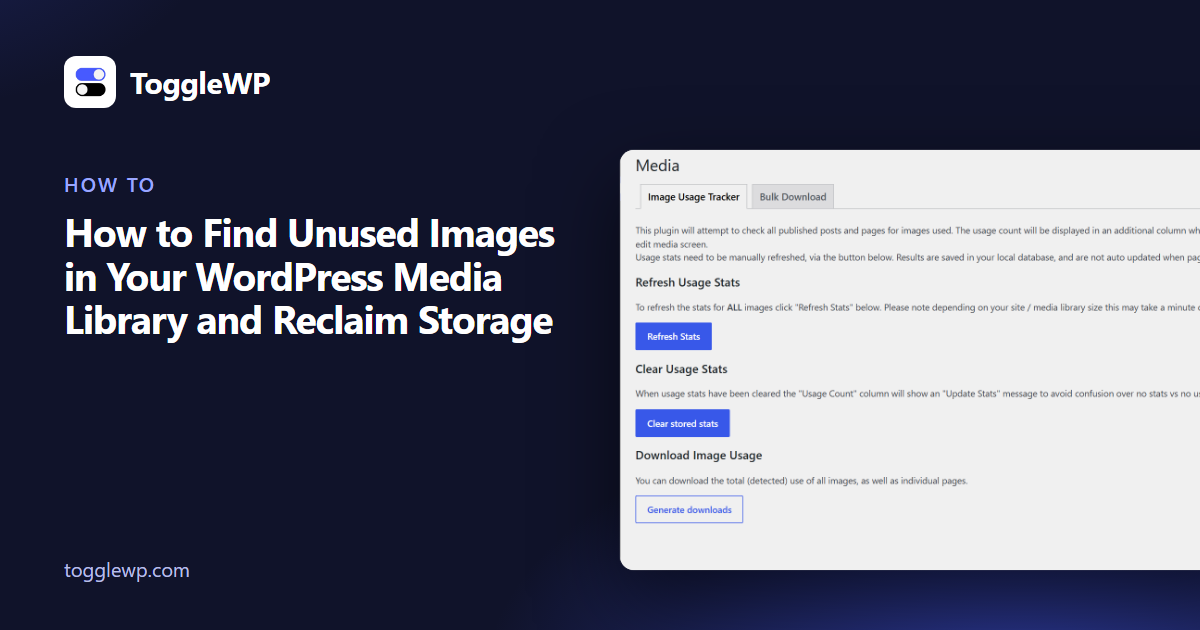
ToggleWP’s Media Management module tracks where every image is used, so you can see which ones are safe to remove.
Find images nothing uses
- Switch on the Media Management module in ToggleWP.
- Go to ToggleWP → Media and under Refresh Usage Stats click Refresh Stats. ToggleWP checks your posts and pages for every image they use, including featured images.
- Open Media → Library in list view. A new usage column shows how many places each image is used. Sort by it and the images used nowhere come first.
- Open an image to see exactly which posts and pages use it before you delete or replace it.
Take care with images used outside posts and pages, such as a logo set in your theme or an image inside a plugin’s settings. If you’re unsure, leave it.
Reclaim space from full-size originals
When you upload a very large photo, WordPress keeps the original and makes a smaller copy for your site to use. Those originals can take up a lot of space. ToggleWP shows the original’s file size on each image and lets you delete it. The scaled version your site uses isn’t affected.
Stop oversized images arriving in the first place
Set a size limit, and ToggleWP emails you when someone uploads an image bigger than that. It’s handy when several people add content to the site.
Other media tools in the module
- Set featured images from the posts list without opening each post.
- Hover previews: hover over a thumbnail to see it full size.
- Bulk download: select several files and download them as a ZIP.
- Media categories and tags: organise a large library and filter it.
None of these is dramatic on its own. Together they fill the gaps in WordPress’s media handling that show up once a library grows past a few hundred files.